Settings
Open CloudPouch Settings from the header’s gear menu, or press Cmd/Ctrl + ,. Choose a section on the left to configure it on the right. Opening Settings keeps your loaded Billing costs and scan results in place.
Identifying profile names have been removed from the screenshots below; license keys and access tokens remain masked.
Select any screenshot to open it at full resolution.
License
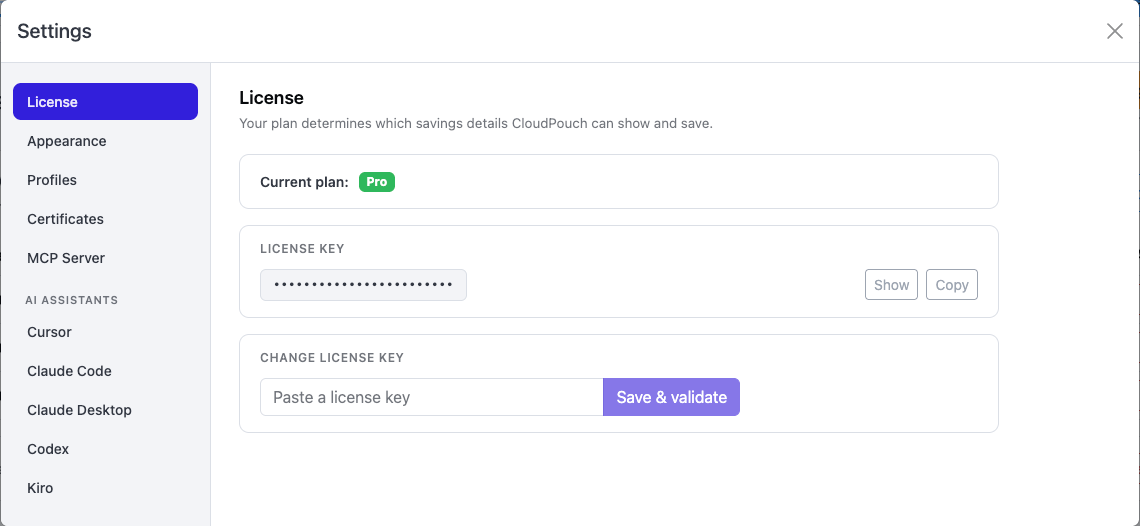
Section titled “License”Use this panel to check the active plan or apply a license key. Open Settings → License.
License shows your current plan and a masked license key. Use Show to reveal the key privately or Copy to copy it. To apply a different key, enter it under Change license key and choose Save & validate.
See Free and Pro plans for the differences in savings detail and saved runs.
Appearance
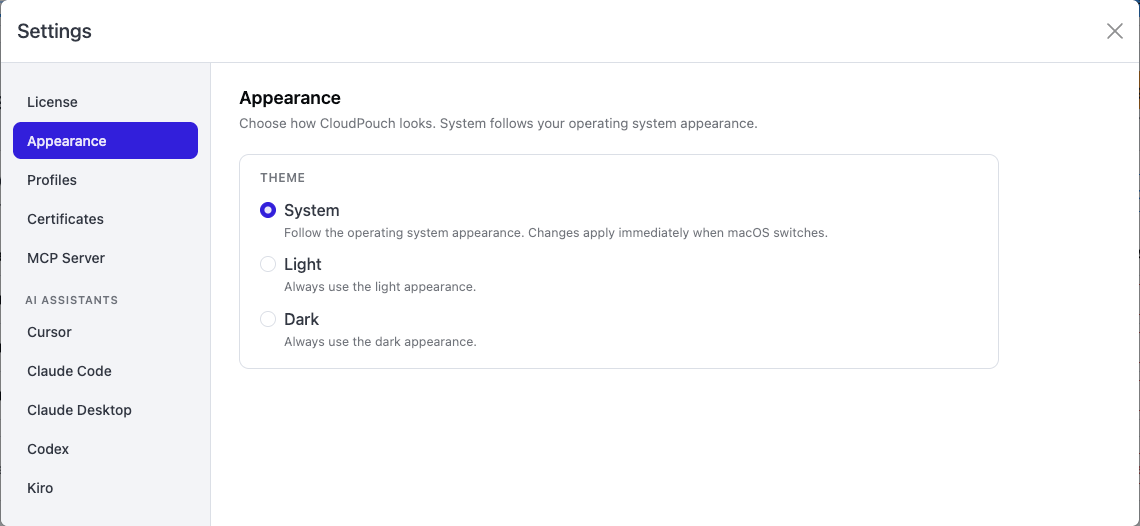
Section titled “Appearance”Open Settings → Appearance when you want to change how the app looks. Choose System to follow your operating system, or Light or Dark to keep CloudPouch in that appearance. The change applies immediately to charts, tables, the profile sidebar, and Savings. You do not need to restart or fetch cost data again.
Profiles
Section titled “Profiles”Use Settings → Profiles when the account lists contain profiles you do not want to see during daily reviews.
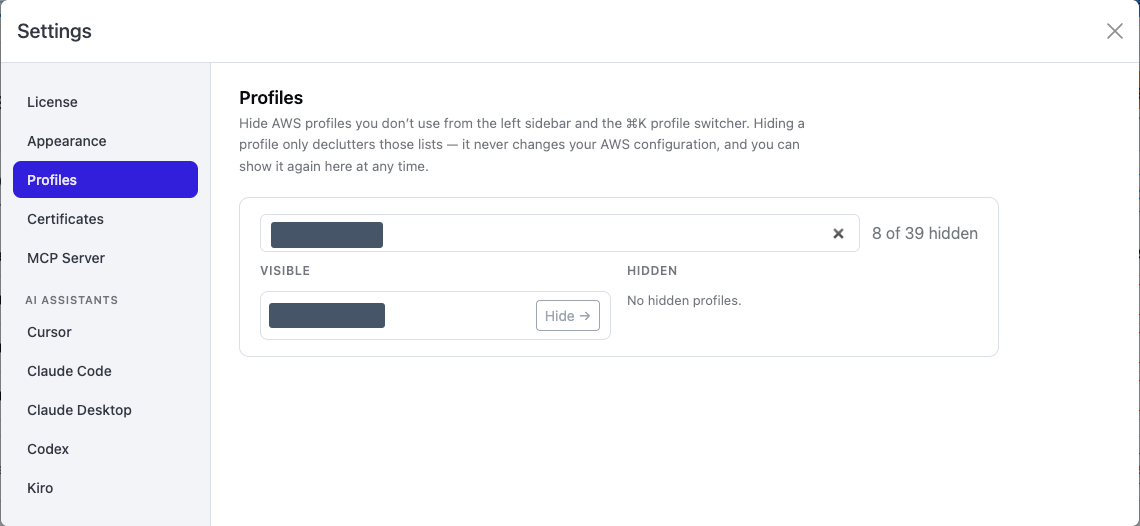
- Enter part of a profile name in the search field.
- Find it in Visible, then choose Hide → to remove it from the sidebar and quick picker.
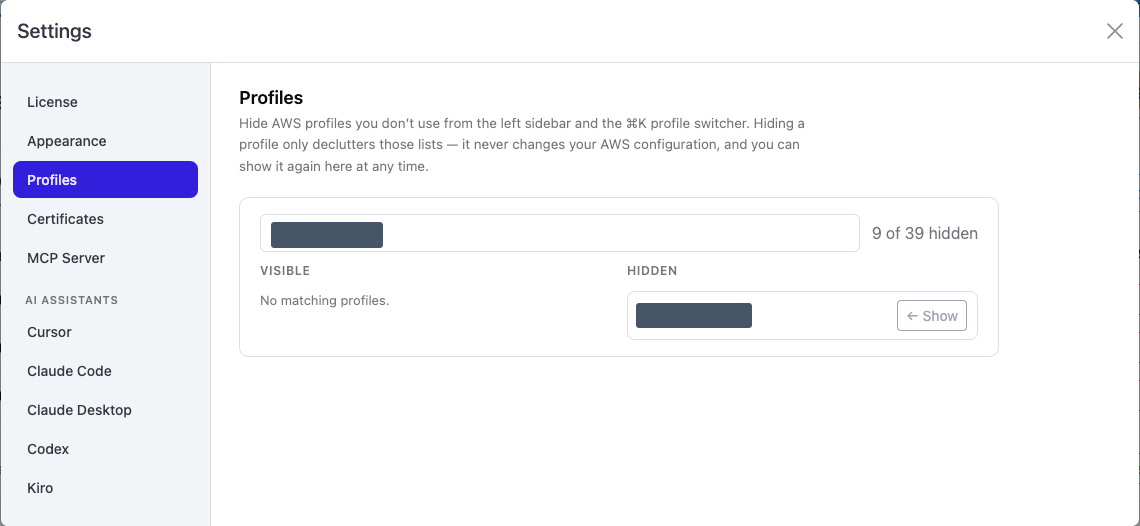
- To restore it later, find it in Hidden and choose ← Show.
- Close Settings when you finish organizing the lists.
After hiding the matching profile, it moves to Hidden and the available action becomes ← Show:
To switch the account being analyzed, close Settings and select a profile in the main sidebar or the Cmd/Ctrl + K picker. See Selecting and switching profiles for that separate workflow.
Hiding a profile is a display preference. It does not edit your AWS configuration files or change AWS permissions. See Connect an AWS profile for profile discovery and sign-in.
MCP Server
Section titled “MCP Server”Open Settings → MCP Server to check or configure the local connection used by AI assistants. This is the server-side step of connecting an assistant; the assistant itself is configured separately. The panel shows whether the server is enabled, its listening address, its port (52700 by default; enter another port between 1024 and 65535 and choose Apply if it is taken), and its masked access token. In this example the server is running on 127.0.0.1:52700.
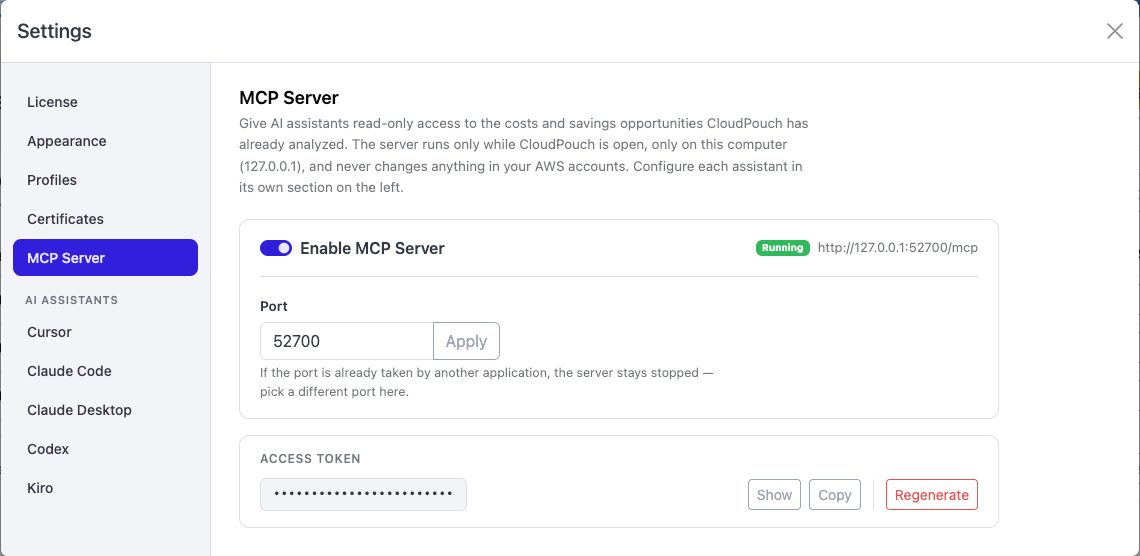
The panel text in the screenshot describes read-only access to the costs and savings opportunities CloudPouch has already analyzed. Some MCP tools can start CloudPouch’s own Cost Explorer refresh and Savings Scan, so “read-only” does not describe the server as a whole; nothing the server does changes your AWS account. See Agentic FinOps (MCP server).
Read Agentic FinOps (MCP server) before enabling access to your local cost and savings data.
AI assistants
Section titled “AI assistants”After checking the MCP server, choose the client name under the AI ASSISTANTS heading in Settings. Follow that client’s instructions in the assistant application or terminal, then verify the connection there. The example below shows Codex’s recommended terminal command and its alternative configuration-file route. The displayed snippets use a token placeholder; the Copy buttons include your real token.
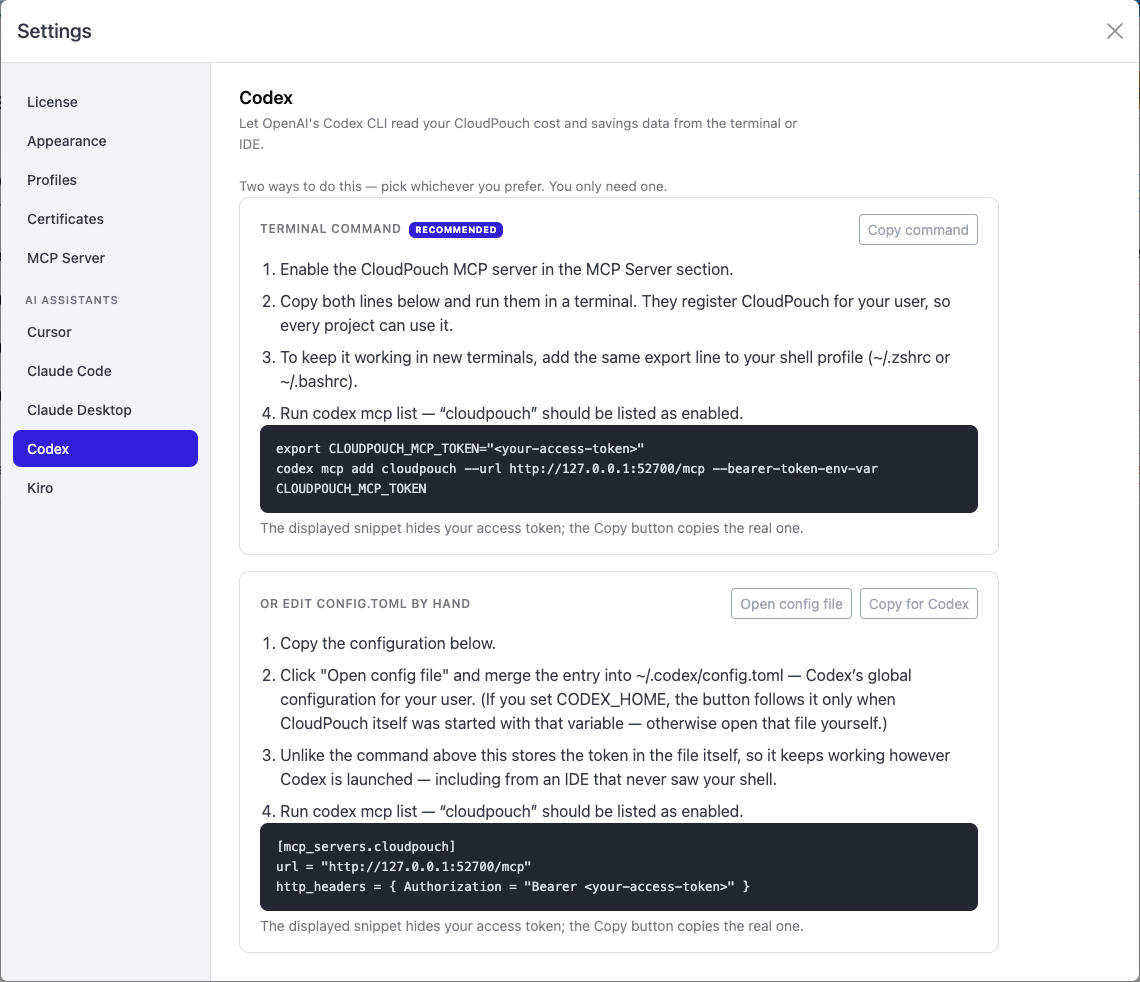
Follow Connect CloudPouch to an AI assistant for the complete workflow and supported assistants.
Certificates
Section titled “Certificates”If your network inspects HTTPS traffic, Certificates lets you configure a corporate CA bundle. See Certificates and proxies for the setup and recovery steps.