How to find every AWS savings opportunity in one scan
One CloudPouch Savings Scan estimates potential savings across every supported AWS service for one account and one month in a single pass — EC2, EBS, RDS, S3, Lambda, EKS, NAT Gateways and the rest. CloudPouch Free shows the aggregate result: what the account costs that month and how much of it looks recoverable. CloudPouch Pro adds a ranked, sortable list of the affected AWS resources and the evidence behind each finding. Either way you do not have to guess which service to check first, which is exactly the problem on an account nobody has reviewed in two years.
Select any screenshot to open it at full resolution.
Before you start
Section titled “Before you start”- Install CloudPouch and connect the AWS profile for the account you want to analyze. Everything runs locally with your own credentials; nothing is deployed into the account.
- Make sure the profile has the read permissions CloudPouch needs. See Create a CloudPouch IAM policy. A missing permission does not silently become “nothing found” — CloudPouch reports it — but you get a better first run if the policy is right up front.
- Decide on the timeframe. A Savings Scan runs on Current month or Previous month. Previous month is the better first pick: it is a complete billing period.
Run the scan
Section titled “Run the scan”For a first review, select the profile, open Billing, and choose Previous month. Then choose Run Savings Scan. Other entry points are:
- The Run Savings Scan call to action in the Savings Workspace (
Cmd/Ctrl + S). - The Run Savings Scan floating action button on Billing.
- In the Billing KPI band, use the scan action when no result is available. If a saved result is already shown, Review in Savings opens it for review.
- The native application menu: Analysis → Start Savings Scan, or the
Cmd/Ctrl + Entershortcut.
If no profile is selected, CloudPouch opens the profile picker (Cmd/Ctrl + K) instead. Choosing a profile there starts the scan immediately — picking the profile is the go-ahead.
If the button is disabled, CloudPouch tells you why rather than failing quietly. The real blockers are profiles still loading, a timeframe that savings analysis does not support, an AWS Organizations-scoped view, and a scan that is already running.
While the scan runs, a progress panel shows the status of each AWS service as CloudPouch works through them. You can leave the screen and the scan keeps going, and you can cancel it mid-run.
Read the result
Section titled “Read the result”When a scan finishes while you are on Billing, CloudPouch shows a summary: how many services it analyzed, the total estimated monthly saving and its share of monthly cost, and a per-service breakdown by recommendation type. That dialog never lists individual resources, on either plan. Open in Savings takes you into that exact run; Stay in Billing leaves it saved for later.
In the Savings Workspace, work in this order:
- Overview. Read the monthly cost, the potential-savings percentage and the top finding. Check its profile, month, timestamp, cost basis, and coverage before reporting the estimate.
- The savings flow. Follow the money through the diagram: by default from recommended solution to resource type, or through any of seven layouts. Clicking a solution chip opens the Opportunities tab already filtered to it; that is the fastest route from “20% looks recoverable” to “here are the 340 volumes”.
- Opportunities. Sort by estimated monthly saving and start at the top. Each finding opens to show the evidence CloudPouch used — the metrics, configuration or reference data behind the recommendation — so you can judge it instead of trusting it.
The Opportunities table and per-opportunity evidence are Pro features. On CloudPouch Free the scan itself is the same full scan across every supported service, and you get the Overview, the savings flow diagram and per-service totals, with aggregate drill-down rather than resource names.
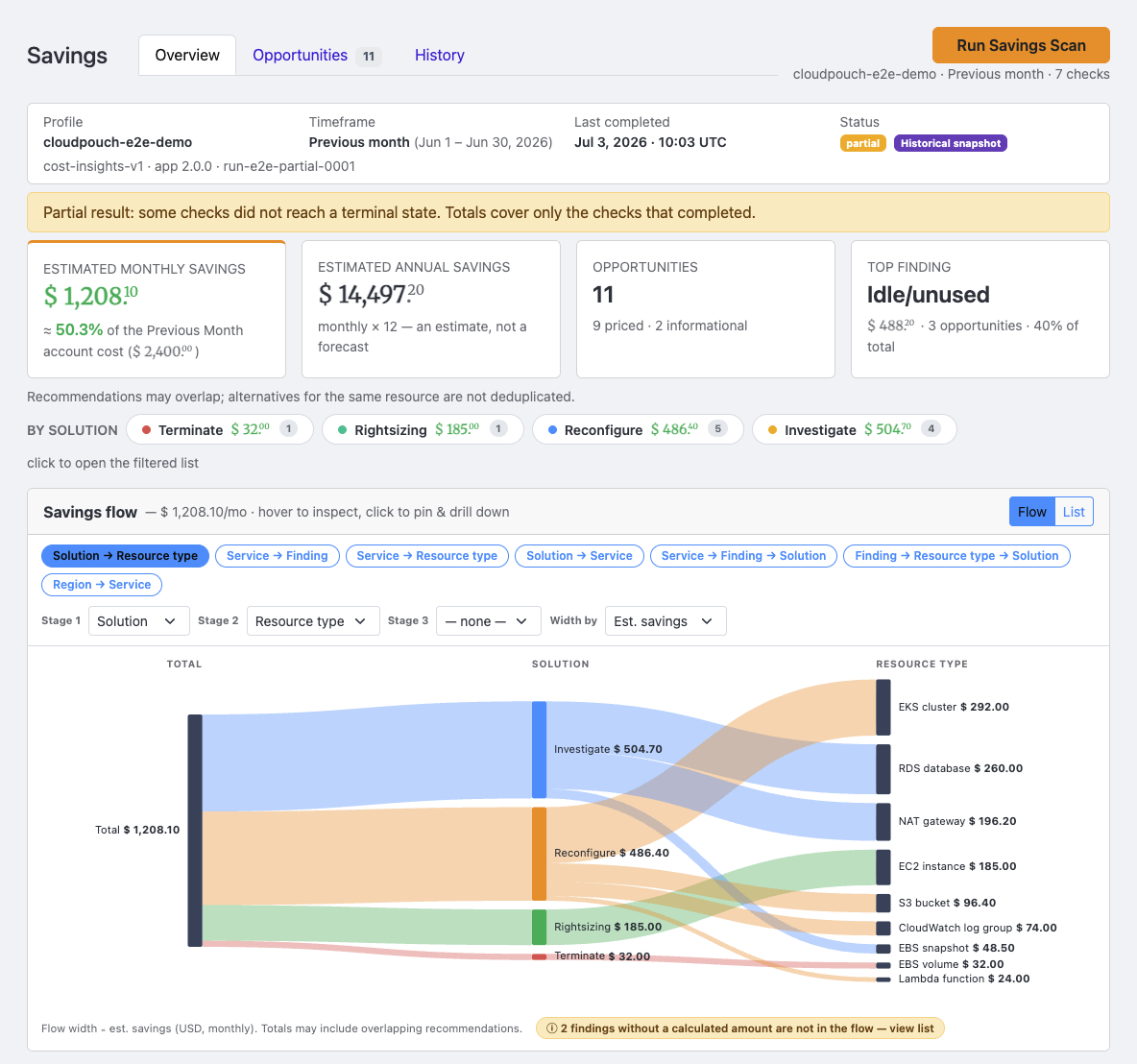
The example above contains both priced and informational findings. The scan context and coverage let you establish which assessment you are reviewing. Use the illustrated Savings Workspace walkthrough to follow an opportunity into its evidence and reopen the run from History.
Check what could not be analyzed
Section titled “Check what could not be analyzed”Before you conclude that a service is clean, open the coverage and permission panels. CloudPouch separates “there is nothing to optimize here” from “CloudPouch could not check this”, names the services that finished with only partial permission, and lists for each failure the AWS service, the Region, the API operation and the AWS error code. Use it with the AWS permissions reference to widen the policy, then scan again — API operation names are a diagnosis, not a ready-made IAM policy.
Act on the findings
Section titled “Act on the findings”CloudPouch never changes anything in your AWS account. Every figure is an estimate for the selected month, so treat the list as a work queue:
- Take the largest opportunities first, and verify each one against current AWS pricing before promising a number.
- Check ownership before deleting anything. A volume attached to a stopped instance, an Elastic IP on a stopped instance, or an old snapshot chain may still be someone’s recovery plan — several recommendations exist to make you investigate, not to delete on sight.
- Re-run the scan after the cleanup to check whether the findings you targeted are gone. A CloudPouch Savings Scan reports estimated opportunities, not realized savings, so confirm the result in the AWS cost data for the following months — measure it with a consistent KPI so account growth does not obscure it.
Keep the run
Section titled “Keep the run”Each scan is saved on your machine, per profile, and listed in the workspace’s History tab with its timestamp, status and total savings. Entering Savings reopens the newest completed or partial run automatically (a newer failed run, or one saved by a newer CloudPouch version, is skipped), so you do not rescan just to look at yesterday’s numbers.
Saving happens in the background. Quitting CloudPouch the instant a scan finishes can leave that run missing after restart — a fresh scan recreates it, but give CloudPouch a moment if the run matters.
Related pages
Section titled “Related pages”- Savings Workspace — the views a scan fills and how runs are stored.
- What is a Cost Insight? — the per-service checks a scan runs in bulk.
- Cost Insights overview — every supported AWS cost area.
- CloudPouch Free and Pro — what each plan sees in a scan result.
- Review costs across many AWS accounts — the same loop, account after account.
- Run your first Cost Insight