Troubleshooting
Most CloudPouch problems trace back to one of three things: the AWS profile, the IAM permissions behind it, or stale cached data. This page walks through the common symptoms in that order, plus the known Linux startup failure.
CloudPouch can’t find my AWS profile
Section titled “CloudPouch can’t find my AWS profile”CloudPouch reads profiles from your standard local AWS configuration — the same files the AWS CLI uses. If a profile is missing from the list, check that it actually exists in one of these sources:
- Static credentials in
~/.aws/credentials. - AWS SSO profiles in
~/.aws/config, including the newer sharedsso-sessionblock format (supported since CloudPouchv1.36.0). - Role-chaining profiles that assume a role via
source_profile.
A quick sanity check: if aws sts get-caller-identity --profile <name> fails in a terminal, the problem is the profile, not CloudPouch.
For SSO profiles, sign in with aws sso login or let CloudPouch start the browser authentication flow — an expired SSO session looks like a broken profile until you re-authenticate. For role-chaining profiles, confirm the source_profile still works on its own.
AccessDenied or missing-permission errors
Section titled “AccessDenied or missing-permission errors”When a Cost Insight hits an IAM permission it does not have, CloudPouch reports the exact blocked call: AWS service, region, API operation, and error code (such as AccessDenied or OptInRequiredException).
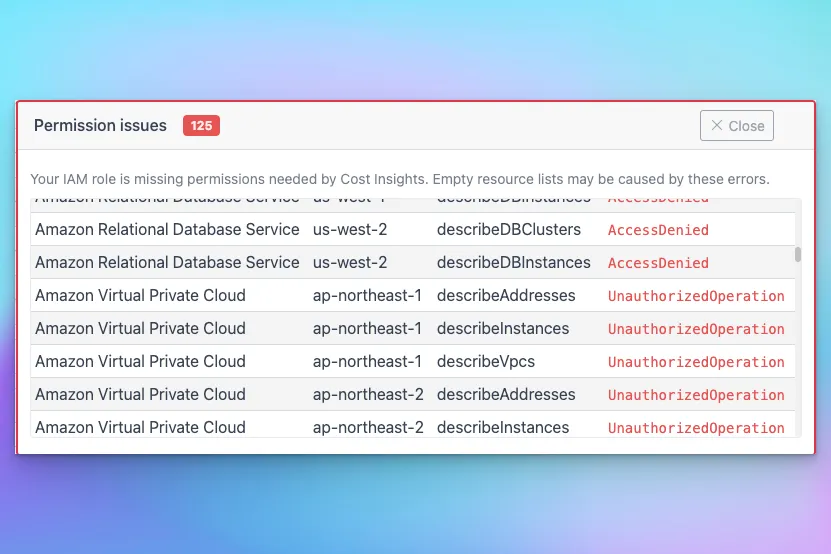
Use those four fields to add the missing action to the IAM user, role, or SSO permission set behind the selected profile. If you are setting up from scratch, start from the full AWS permissions policy instead of adding actions one by one.
Results look incomplete or don’t match Cost Explorer
Section titled “Results look incomplete or don’t match Cost Explorer”Work through these in order:
- Wrong account. Confirm the selected profile points at the account you meant to analyze — with many similarly named profiles this is the most common cause.
- Missing permissions. Any permission issue rows shown by CloudPouch mean part of the analysis was skipped; the totals reflect only what it could read.
- Stale cache. Refresh cached data if the account, timeframe, or CloudPouch version changed since the last download. See Data refresh and cache.
- Missing tags. Tag-based views (such as Bedrock cost breakdown by IAM tag) can only show what is tagged. Untagged principals or resources fall outside the breakdown.
- Billing data lag. AWS finalizes recent cost data with a delay — the last day or two is often not settled yet. If a number looks low, compare the same timeframe in AWS Cost Explorer before assuming CloudPouch dropped something.
CloudPouch won’t start on Ubuntu Linux (“GPU process isn’t usable”)
Section titled “CloudPouch won’t start on Ubuntu Linux (“GPU process isn’t usable”)”On some Linux systems the AppImage exits immediately, and the log contains:
GPU process isn't usable. Goodbye.This is a Chromium/Electron GPU initialization failure, not an AWS or configuration problem. Start the AppImage with the --in-process-gpu flag:
./Downloads/CloudPouch-1.19.0.AppImage --in-process-gpuAdjust the file name and path to the CloudPouch AppImage version you downloaded.
Check the logs
Section titled “Check the logs”CloudPouch writes a local main.log that covers startup, profile loading, cache operations, and AWS API calls. When a symptom does not match anything above, the log usually names the failing operation. See Local files for the log directory on macOS, Windows, and Linux.
What to collect before reporting an issue
Section titled “What to collect before reporting an issue”- CloudPouch version and operating system.
- AWS profile name — never include secret keys or session tokens.
- The timeframe and Cost Insight you ran.
- Service, region, API operation, and error code from any permission issue.
- Whether the result changed after refreshing cached data.
- The relevant lines from
main.log.