Savings Workspace
The Savings Workspace holds the opportunities CloudPouch found for one AWS profile and one month, in a saved run you can reopen later. Choose Savings in the header, or press Cmd/Ctrl + S, then use Overview, Opportunities, and History to review the assessment.
Start with Application layout if you need help locating the main views and period controls. Use Billing and reports to investigate spend or compare two months.
A Savings Scan is the bulk run — CloudPouch analyzes every AWS service it supports for the selected profile in a single pass. The Savings Workspace is the view that run fills. Per-service Cost Insights still exist and still run on their own; a scan does not replace them.
Select any screenshot to open it at full resolution.
One profile, one month
Section titled “One profile, one month”The workspace is scoped to one AWS profile and one timeframe at a time, independently of what you were looking at in Billing. Savings analysis runs on Current month and Previous month only; entering Savings defaults to Previous month. Check the profile, month, and run timestamp before interpreting the estimate, especially when reopening an earlier assessment from History.
Choose the next review step
Section titled “Choose the next review step”| Your task | Where to go | What to check before continuing |
|---|---|---|
| Judge the size of the opportunity | Overview | Profile, month, scan timestamp, cost basis, and coverage |
| Build a focused optimization list | Overview → solution chip, or Opportunities | Active filters, the number of matching findings, and the amount in view |
| Decide whether a recommendation fits the workload | Opportunities → expand a row (Pro) | Current configuration, observed usage, proposed change, and cost basis |
| See where the estimate concentrates | Overview → savings flow | Layout, what the width shows, and findings outside the flow |
| Revisit an earlier assessment | History → Open | Run timestamp and snapshot context |
The three tabs
Section titled “The three tabs”The examples below come from the real application running on a fictitious account. The amounts are estimates from those example runs, not guaranteed savings.
Overview
Section titled “Overview”Overview answers “what is this one run worth”. It shows the profile’s monthly cost with a potential-savings percentage, a top finding, and a one-line run context: which profile, which timeframe, when the scan ran, and what the cost figures are based on. Below that sits the savings flow, a summary of what CloudPouch analyzed, and a note for anything that was permission-limited or excluded. Solution chips on the Overview jump straight into the Opportunities tab with that filter already applied.
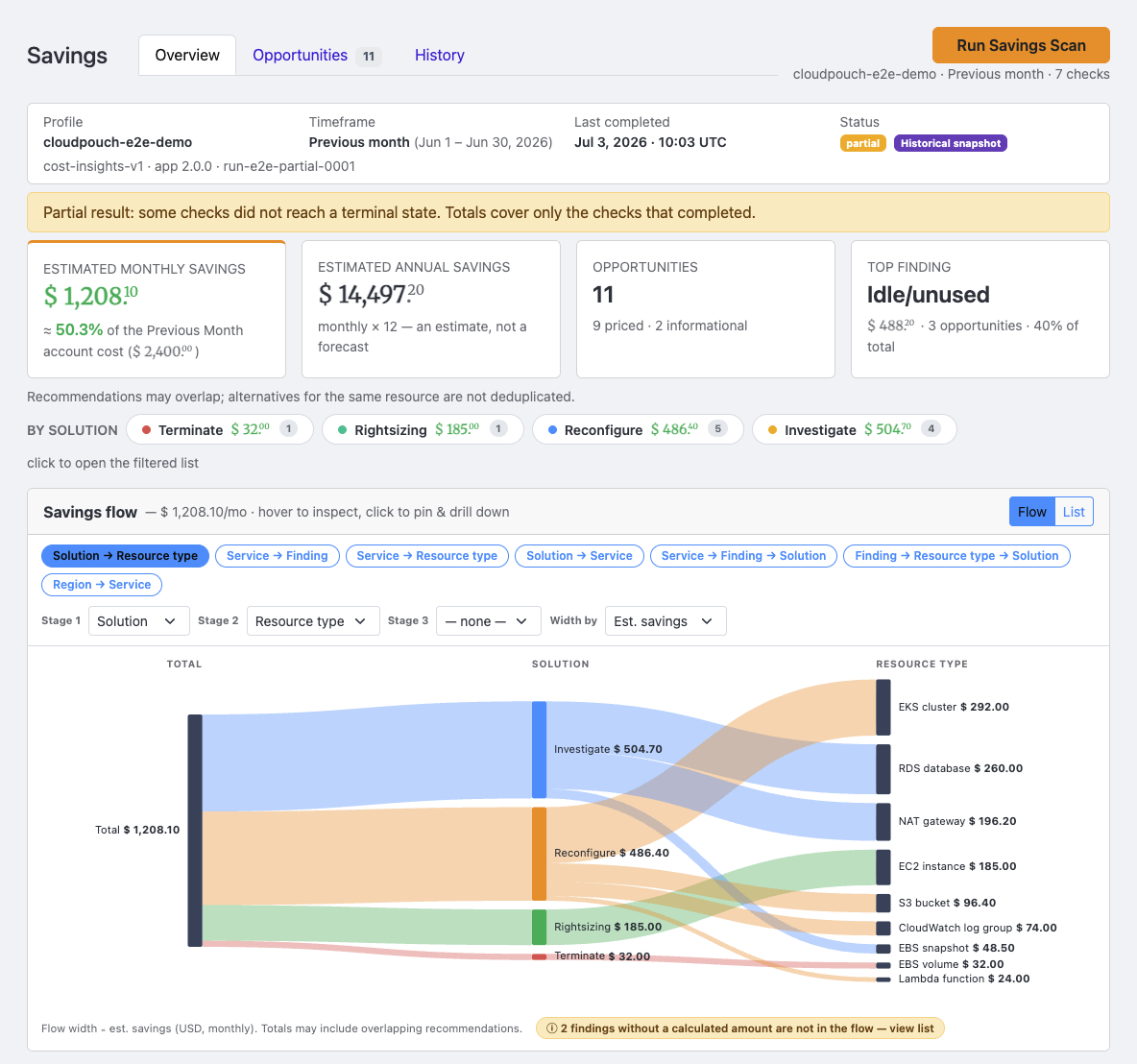
In this example, 9 findings have a calculated amount and 2 are informational. The screenshot shows Flow with its default layout; in a full run, switch to List to rank services by estimated savings, expand a service to inspect its recommendation breakdown, or choose View to open its Opportunities. This saved run includes a check limited by permissions, which is why the Overview carries a partial-result warning. Always inspect coverage on your own run: a finished scan can still have permission-limited checks.
The savings flow
Section titled “The savings flow”The savings flow is a Sankey diagram of the run. The total estimated saving sits on the left and splits into stages, and the width of each ribbon is proportional to its share. A glance shows which solution, service, or resource type carries most of the estimate, before you read a single row of the Opportunities table.
By default the diagram reads left to right as Solution → Resource type: what kind of action CloudPouch recommends, then which kind of AWS resource it applies to. The recording below shows the real application on a fictitious run, without sound. It starts on the default layout, switches to three other layouts, hovers over a node, pins it to open the summary panel, and presses Esc to unpin.
Choose a layout. Seven presets sit above the diagram: Solution → Resource type (the default), Service → Finding, Service → Resource type, Solution → Service, Service → Finding → Solution, Finding → Resource type → Solution, and Region → Service. For a layout of your own, set Stage 1, Stage 2, and Stage 3 to any of Service, Finding, Solution, Resource type, Region, or Category. Each dimension can be used once, and Stage 3 can stay on — none — for a two-stage flow.
Set the width. Width by switches between Est. savings (the default), Current cost, and Findings. With Findings every finding counts as one, so the ribbons show how many findings sit behind each path rather than how much money. A finding that has no value in the chosen weighting cannot be drawn; a chip under the diagram counts those findings and, in a full run, links to them in Opportunities, so nothing disappears silently.
Inspect and pin. Hovering over a node or ribbon opens a tooltip with its name, amount, number of findings, and share of the flow, and highlights the paths it touches. Clicking a node or ribbon pins it, and a summary panel appears below the diagram with the same figures. With keyboard navigation, Tab moves between nodes, and Enter or Space pins the focused one. Pro lists up to three of the largest findings on the panel and offers View in Opportunities →, which opens the table already filtered to the pinned path. To unpin, press Esc, select ×, click empty space in the diagram, or click the pinned item again.
Layout, pin, and mode. Changing a preset, a stage, or the width setting clears the pin. In a full run, switching to List also drops it, while the layout you chose returns when you come back to Flow.
A note under the diagram reads “Totals may include overlapping recommendations”. Alternatives for the same resource are not deduplicated, so use the flow to see where the estimate concentrates, and review the findings before adding amounts together. The diagram is the same on both plans; the pin panel is where Free and Pro differ.
Opportunities and evidence
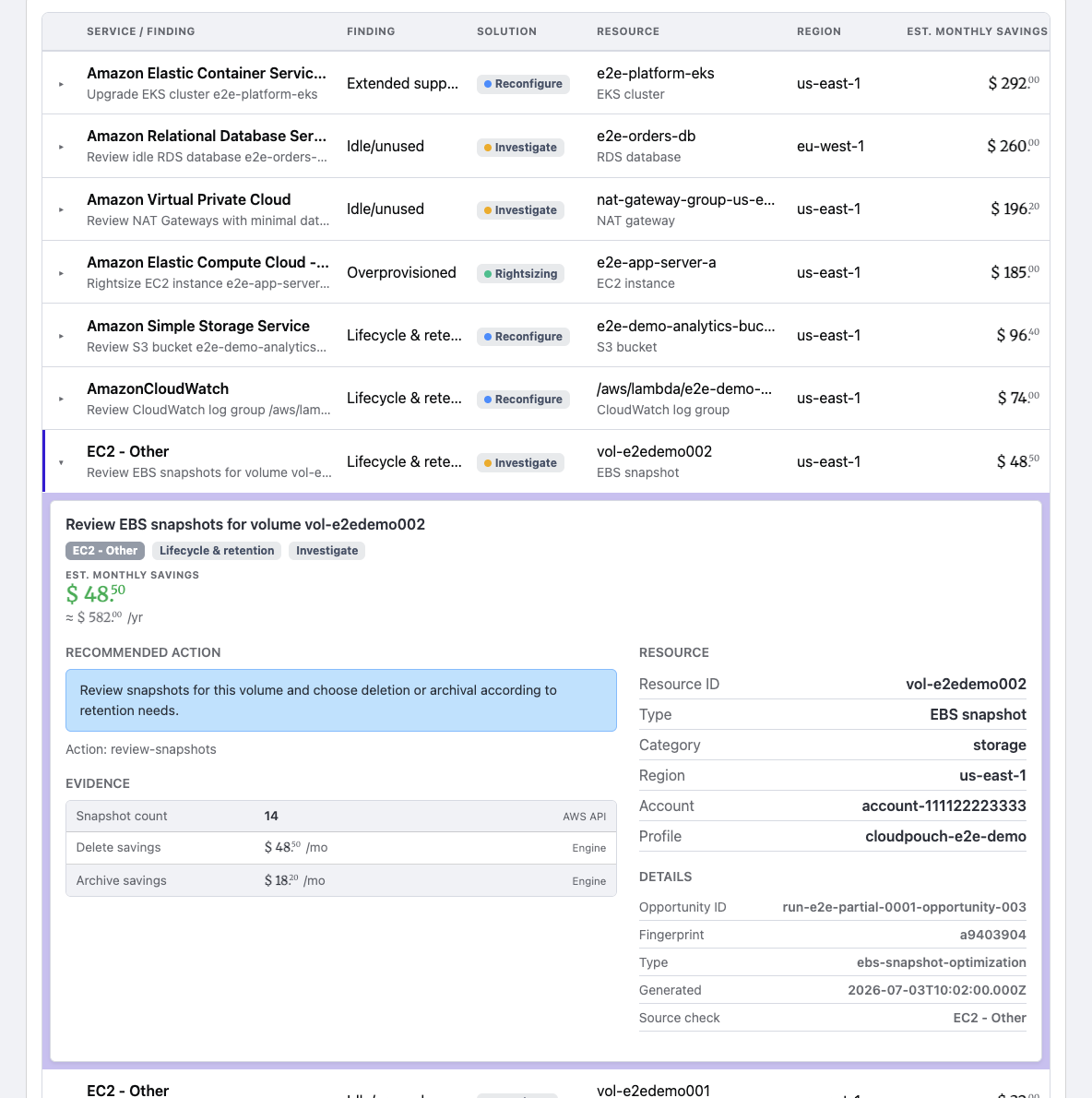
Section titled “Opportunities and evidence”On Pro, Opportunities turns the run into one row per finding — the AWS service, the resource, what CloudPouch found, the recommended solution, and the estimated monthly saving — with search, filter chips, a way to clear every filter at once, and 100 rows per page. Opening a finding shows the evidence behind it: the metrics, configuration, or reference data CloudPouch used, grouped per service, next to the concrete recommended action. Evidence views cover EBS, EBS snapshots, RDS, EC2 compute, EC2 Other and NAT Gateways, Elastic Load Balancing, Lambda, CloudWatch, S3, EFS, ECR, DocumentDB, VPC, EKS, DynamoDB, and Glue.
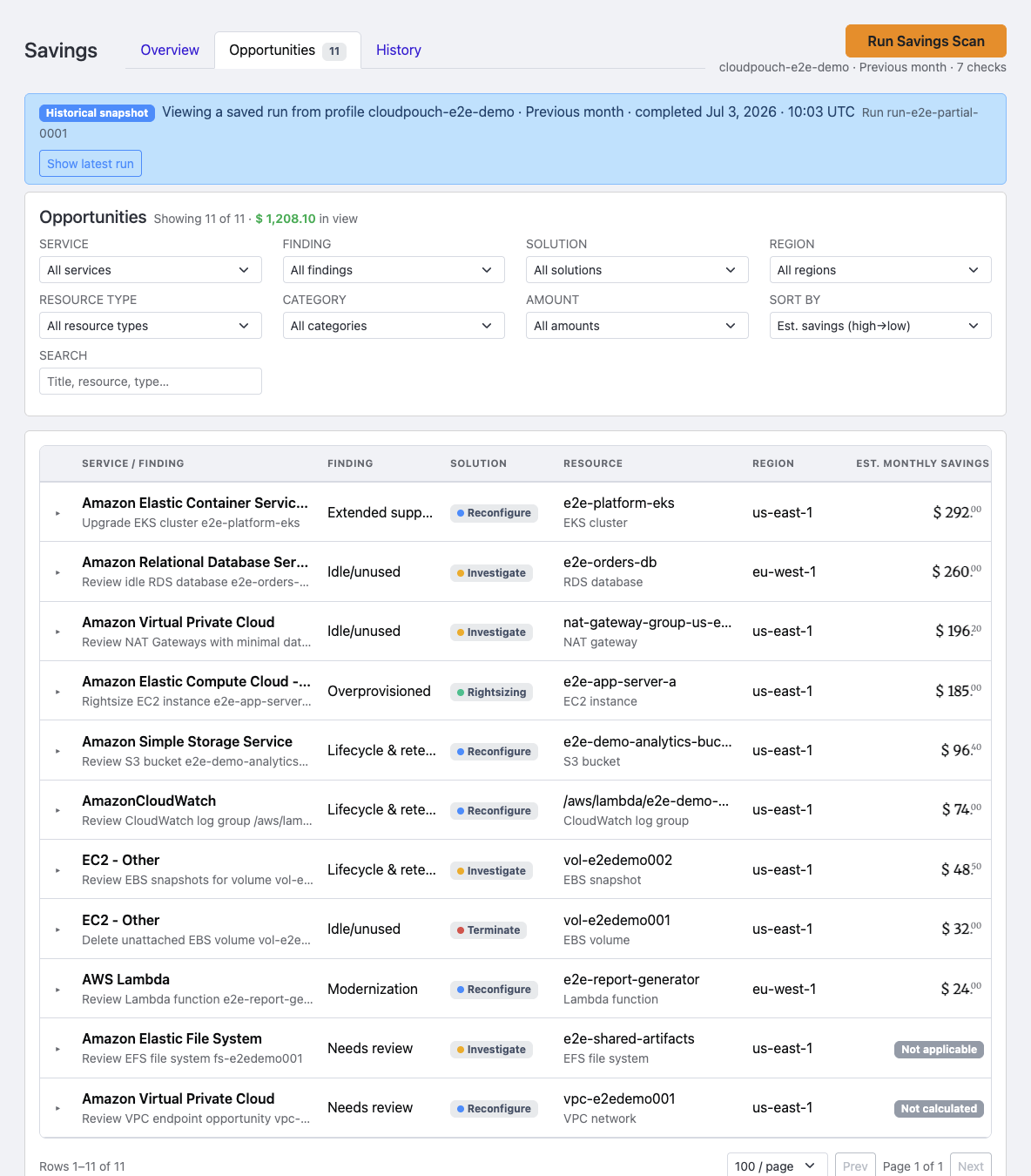
The example table above shows all 11 opportunities, with $1,208.10 in estimated monthly savings in view. To turn the overview into a work list, choose a solution chip such as Reconfigure under By solution; the subtotal then follows the active filter, and Clear filters returns to the whole run.
Open a row to inspect its evidence before acting. The EBS snapshot example below shows the recommended action next to the evidence behind it (the snapshot count and the estimated monthly savings from deleting or archiving) and the resource details. Judge whether the recommendation fits the workload first. A recommendation is a review item; expanding it does not change the AWS resource.
History
Section titled “History”History lists the runs CloudPouch saved for that profile, each with a local timestamp, its status, and its total savings. You can open a run, delete one, or delete them all, and reach another profile’s history read-only from the same tab.
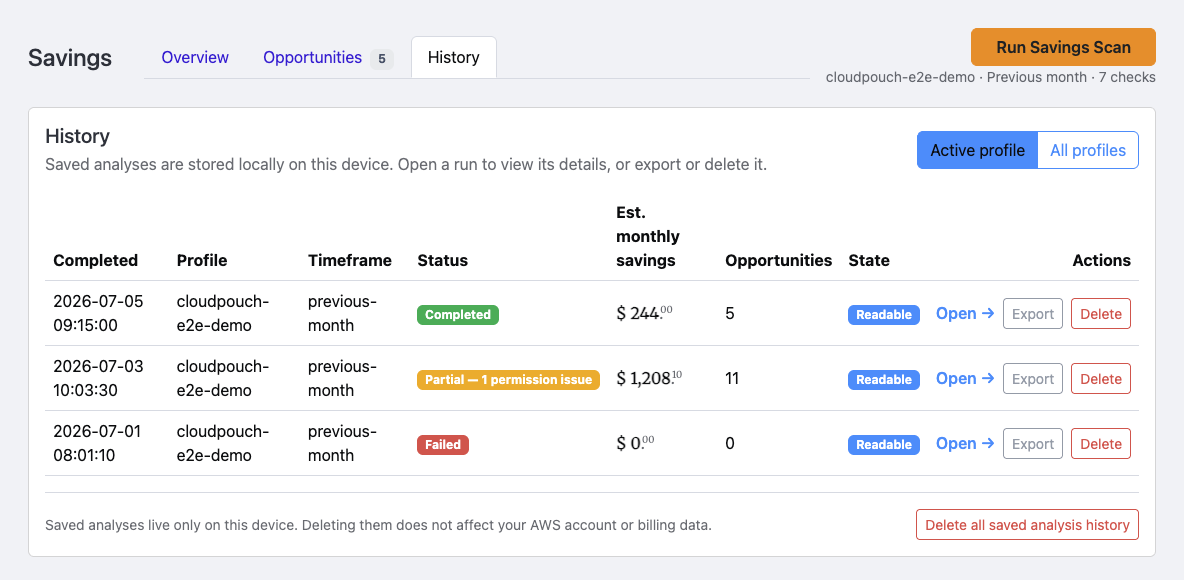
Choose Open to review a saved assessment. Its timestamp and snapshot context distinguish it from a new scan. Review the status and coverage of that run before using its total in a report; a partial run is an incomplete account assessment.
What Free and Pro see
Section titled “What Free and Pro see”CloudPouch Free is the permanent basic plan, and it runs the same full scan across every supported service (the Free limit is on detail, not on scanning):
- Both plans: the Overview tab, the savings flow diagram, per-service savings totals, coverage and permission reporting, saved runs opening automatically, and the scan itself.
- Free: the flow’s drill-down shows aggregate figures and an upgrade prompt, never resource names. The Opportunities table is replaced by a paywall card, opportunity evidence is not available, and history holds summary records with no export.
- Pro (including a Pro trial): the full filterable Opportunities table, per-opportunity evidence, full run history, and export.
One consequence worth planning around: a run saved while CloudPouch is on Free stays summary-only. Upgrading to Pro does not backfill detail into it. CloudPouch validates its license once per application start, so restart CloudPouch after upgrading, then run one fresh Savings Scan on Pro to save per-opportunity detail for that profile from then on. That, and the other known limitations, are worth reading before you rely on a saved run.
How runs are stored and reopened
Section titled “How runs are stored and reopened”Runs are saved on your own machine, per profile. Nothing is uploaded, the file format is versioned, writes are atomic, and only CloudPouch’s own result objects are stored — raw AWS API responses are never written to disk.
Entering the Savings Workspace opens that profile’s newest completed or partial saved run that this version of CloudPouch can read. A newer failed run is skipped, as is a run saved by a newer CloudPouch version, and the empty state appears only when no such run exists. Opening an older run puts the workspace into a snapshot of that run, marked in the run context, and CloudPouch offers to jump forward only when a newer saved run for the same profile actually exists.
Saving happens in the background, so persistence is not unconditional: if you quit CloudPouch immediately after a scan finishes, that run can be missing when you start again. Writes are atomic once they begin, so the failure mode is a missing run rather than a damaged one, and running a fresh scan recreates it. If a scan matters, give CloudPouch a moment before quitting.
Coverage is reported, not assumed
Section titled “Coverage is reported, not assumed”An empty result has two very different causes: the account is clean, or CloudPouch was not allowed to look. The workspace keeps them apart. A coverage panel names the services that finished with only partial permission, and a separate permission-issues panel lists, for each failure, the AWS service, the Region, the API operation, and the AWS error code returned. Both are available on Free and Pro.
Treat that list as a diagnosis, not as a finished IAM policy — API operation names do not map one-to-one onto IAM actions. Use it alongside the AWS permissions reference to work out what to grant, then scan again.
Very large accounts
Section titled “Very large accounts”A bulk scan on a large account produces a large result, and CloudPouch renders it by mounting only the rows you can actually see in big tables. On one real account that produced roughly 50,000 opportunities across 16 Regions, a bulk Savings Scan completed, the run persisted, and the completion summary worked. That is a measurement from one account, not a supported maximum or a performance promise — CloudPouch does not publish a supported account size. One rough edge remains: filtering the Opportunities table still feels heavier on very large accounts than it does on ordinary ones.
Related pages
Section titled “Related pages”- Find every AWS savings opportunity in one scan — how to run a scan and what to do with the result.
- What is a Cost Insight? — the focused per-service checks a scan runs in bulk.
- Cost Insights overview — every supported AWS cost area.
- CloudPouch Free and Pro — what each plan sees in the workspace.
- AWS permissions
- Known limitations
- Keyboard shortcuts