Connect CloudPouch to an AI assistant
Agentic FinOps lets an AI assistant answer from your own AWS cost data, locally. CloudPouch ships guided setup for five AI assistants (Claude Code, Claude Desktop, Cursor, Codex, and Kiro) so your assistant answers questions about your AWS spend from CloudPouch’s own local data instead of guessing. First enable and check the server in CloudPouch, then configure the client in your assistant, and finally verify that it can retrieve CloudPouch data.
Select any screenshot to open it at full resolution.
Step 1: Turn on the MCP server
Section titled “Step 1: Turn on the MCP server”CloudPouch’s MCP server is disabled by default. Open Settings → MCP Server — also reachable from the MCP Server item in the header gear menu — and enable it.
The server then listens on 127.0.0.1, on port 52700 unless you change the Port field in the same panel, and requires a locally generated token, which Settings shows masked. It runs only while CloudPouch is running. Before you connect anything, read Agentic FinOps (MCP server) so you know what an assistant can reach and what it can never do.
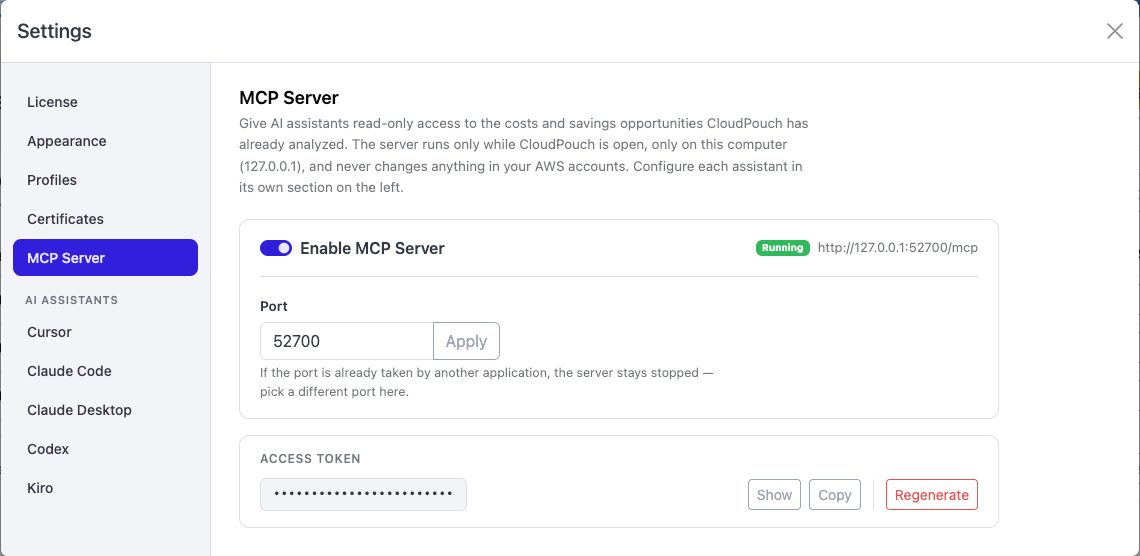
The panel text in the screenshot describes read-only access to the costs and savings opportunities CloudPouch has already analyzed. Some MCP tools can start CloudPouch’s own Cost Explorer refresh and Savings Scan, so “read-only” does not describe the server as a whole; nothing the server does changes your AWS account. See Agentic FinOps (MCP server).
Step 2: Configure your assistant
Section titled “Step 2: Configure your assistant”Keep Settings open and select your assistant by name under the AI ASSISTANTS heading on the left. There is one section per assistant and one card per setup route. Every card has a Copy button; cards that target a configuration file also have an Open config file button that opens the real file in your default editor.
CloudPouch never writes another application’s configuration file. It gives you the snippet and a shortcut to the file; you make the edit.
| Assistant | Setup route | Configuration file |
|---|---|---|
| Claude Code | A ready-to-paste terminal command | None — the Claude Code CLI writes its own |
| Codex | Both: a terminal command (marked Recommended) and a configuration-file card | config.toml |
| Claude Desktop | Configuration file | claude_desktop_config.json |
| Cursor | Configuration file | mcp.json |
| Kiro | Configuration file | mcp.json |
The two command-only cards — Claude Code and the Codex terminal command — have no Open config file button, because those CLIs write their own files.
Claude Code
Section titled “Claude Code”Copy the command from the card and run it in your terminal. It registers CloudPouch once per user, not per directory, so every project you open with Claude Code can reach CloudPouch without repeating the setup.
Claude Desktop
Section titled “Claude Desktop”Claude Desktop connects through the documented mcp-remote stdio bridge, which means it needs Node 18 or newer on your machine. This route is not dependency-free.
If you installed Node through nvm or a similar version manager, npx may not be on the PATH that desktop applications see, and Claude Desktop will fail to start the bridge. The guided setup includes a which npx fallback step for exactly this case — follow it and use the full path it reports.
Use the terminal-command card if you can; it is the recommended route. If you prefer to edit the file, the second card targets config.toml and gives you the Open config file button. If you start CloudPouch with $CODEX_HOME set, CloudPouch honors it when pointing at the file.
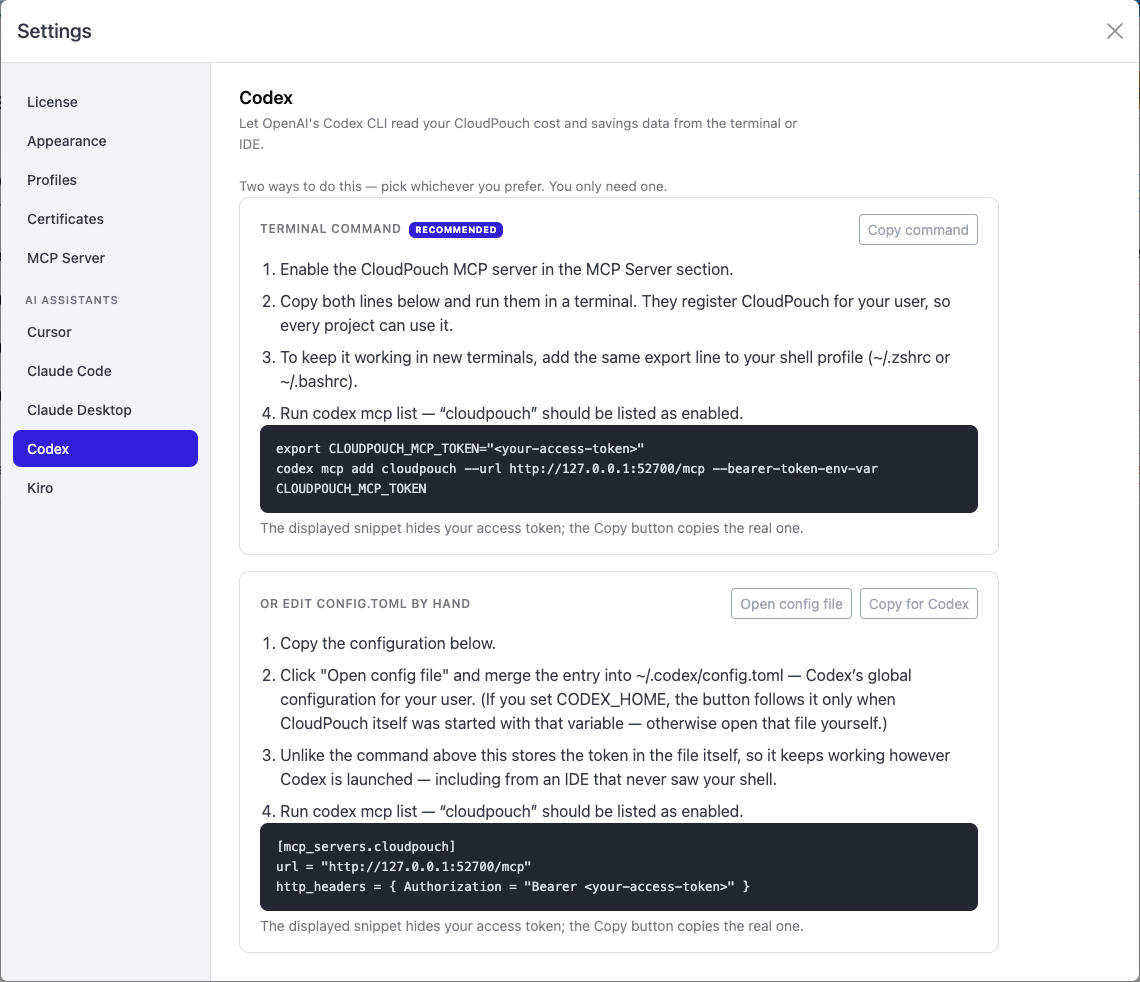
The screenshot shows the Codex section of Settings. Choose one of the two setup routes, then follow the verification step on that card. The displayed token is a placeholder; copying a card includes your actual access token.
Cursor and Kiro
Section titled “Cursor and Kiro”Both are configuration-file routes targeting mcp.json. Use Copy on the card, then Open config file, then paste and save.
Step 3: Ask a question
Section titled “Step 3: Ask a question”Keep CloudPouch running and select the intended profile. In your assistant, check that the CloudPouch MCP connection is available, then ask something only CloudPouch can answer: for example, which AWS profiles CloudPouch knows about, or what your largest service cost was last month. Compare the returned profile and period with CloudPouch. A matching result verifies both the connection and the analysis context.
From there, your assistant can compare two months, summarize what a Savings Scan found, and — on any activated plan — refresh CloudPouch’s cost data or start a Savings Scan for you. The full list is in the MCP tools reference.
If your assistant cannot reach CloudPouch
Section titled “If your assistant cannot reach CloudPouch”- CloudPouch must be running. The MCP server lives inside CloudPouch and stops when CloudPouch does. If the window is closed or you are on the Login screen, the action tools answer with an error telling you to open CloudPouch and sign in.
- Check the server is still enabled in Settings → MCP Server, and that what you pasted into your assistant still matches the card in Settings → AI assistants.
- Claude Desktop failing to start is usually the Node or
npxPATH problem described above. - An upgrade message instead of an answer means you asked for detail that needs Pro — the saved scan history, the opportunities list, or one opportunity’s evidence. The summary-level tools and all three action tools work on Free — see Free and Pro plans.
- A “not activated” answer means CloudPouch has no activated plan on this machine; register or activate CloudPouch first.