Application layout
CloudPouch organizes cost analysis around three choices: which AWS profile, which view, and which period. Select a profile in the left sidebar, choose Billing, Savings, or Compare near the top left, then set the period for that view.
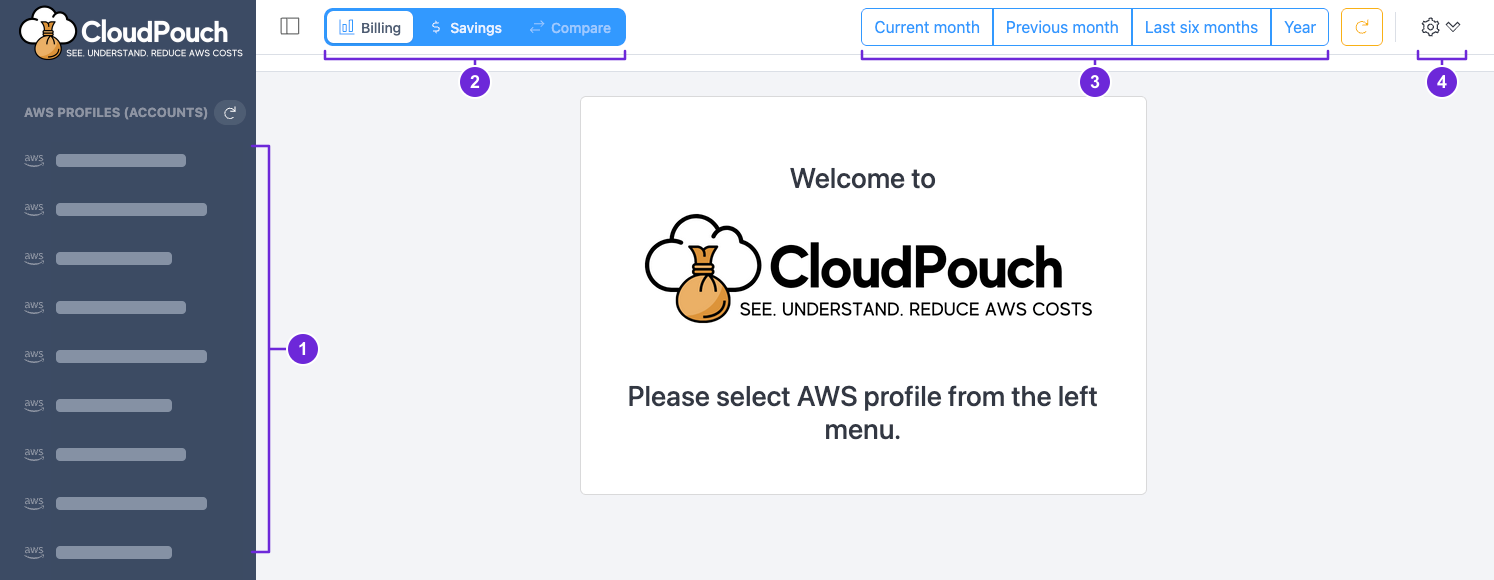
This is the welcome screen before selecting a profile. Profile names are masked, and the numbered annotations are added for this guide. Compare is inactive until you select a profile. Select any screenshot to open it at full resolution.
Four places to know
Section titled “Four places to know”| Marker | Area | What you do here |
|---|---|---|
| 1 | AWS profiles in the left sidebar | Choose the AWS account context for your analysis. You can also open the profile picker with Cmd/Ctrl + K. |
| 2 | Billing / Savings / Compare in the header | Choose the question you want to answer: where money goes, where you could save, or why costs changed. |
| 3 | Timeframe controls in the header | Choose the period for Billing or Savings. Compare uses two month selectors in the report instead. |
| 4 | Gear menu at the top right | Open Settings to manage your license, appearance, profile visibility, and integrations. The menu also holds MCP Server, Keyboard shortcuts, What’s new, Documentation, and, when an upgrade applies, Upgrade to Pro. |
Selecting a profile and managing the profile list are separate actions. The sidebar and Cmd/Ctrl + K choose the profile to analyze; Settings → Profiles is where you hide or restore entries in that list. See Connect an AWS profile and Settings for those steps.
The What’s new dialog
Section titled “The What’s new dialog”A What’s new dialog introduces the main features of the installed release. It opens automatically on up to three starts, or fewer if you tick Don’t show this again before closing it. What’s new in the gear menu opens it again at any time. During a Pro trial, the trial dialog comes first and What’s new follows it.
Choose a view and its period
Section titled “Choose a view and its period”| View | Question it answers | Available periods |
|---|---|---|
| Billing | Where did the money go? Explore cost charts, services, regions, and UsageTypes. | Current month, Previous month, Last six months, Year |
| Savings | What could we optimize? Review a Savings Scan, its opportunities, and saved runs. | Current month, Previous month |
| Compare | What changed between two months? Inspect cost increases, decreases, and their drivers. | Choose a baseline month on the left and a comparison month on the right inside the report. |
The period controls change with the view. When you open Savings, Last six months and Year disappear; entering Savings defaults to Previous month. Savings has its own profile-and-month context, so check it before reading a saved result or running a scan.
When you open Compare, the four Billing timeframe buttons disappear from the header. Set both months in the comparison report instead. The missing buttons are part of that view’s layout, not a sign that your billing data has disappeared. Read a comparison explains the selectors and the normalized monthly totals.
Billing’s longer periods help you inspect trends. Cost Insights and Savings Scans analyze Current month or Previous month only. Always check the displayed date range; Billing timeframe rules explain the UTC boundaries and the labels on the first day of a month.
Savings has another level of navigation
Section titled “Savings has another level of navigation”
The top row chooses the main view. The row below belongs to Savings: Overview summarizes the selected run, Opportunities lists its findings, and History lets you revisit earlier runs. Those three tabs organize the Savings Workspace; they do not switch back to Billing or choose a different month.
The screenshot also shows Run Savings Scan, which starts a new assessment once you have selected a profile. Opening a saved run and starting a new scan are different steps. See Savings Workspace for how to read the run context, evidence, and history.
Start with your question
Section titled “Start with your question”- Understand this month’s bill: open Billing and reports and drill from a service total into its UsageTypes.
- Build an optimization list: open Savings Workspace and review a scan’s coverage and opportunities.
- Explain a monthly increase or verify a reduction: open Compare reports and inspect the changes between two months.
For a task-by-task route through the results, see Choose a cost review workflow.